Online Meetings — Webcam and Headphones

Most of us are now using the computer, tablet, or cell phone for live meetings or recording video content. One of the primary tools for getting this done is a webcam.

Webcams are typically built into any laptop and all-in-one computer setups. If you have a stand-alone monitor, typically you will purchase a USB connected webcam to set on top. Nothing prevents a laptop user from using a USB webcam, and you may find the picture quality greatly improved because your monitor angle does not directly impact your camera and external equipment is typically higher quality.

I highly recommend those using a stand-alone monitor or a laptop purchase a USB webcam to set on top, even if you have a camera in your laptop. For effective meeting experience, you need to be looking directly at your monitor screen and have the camera position be ABOVE your eye level. If you have a laptop sitting on a desk or your lap, and you look down at it, it will add weight to your features and give many viewers an EXCELLENT viewing angle of your nose hairs! Some options are:

All of these models have face recognition technology. Do NOT purchase a webcam that doesn’t automatically focus. You do not want to be adjusting the camera focus point every time you move during a one hour or longer meeting.

Most webcams have a microphone, which is good if you are in a quiet room with soft surfaces to absorb background noise or echoes. Some even of noise-canceling features. Since most of us cannot guarantee a quiet space for all meetings, I highly recommend investing in some cordless headphones. Even an inexpensive Bluetooth stereo headphones with microphone will normally give you a much better audio than if you just use the built-in microphone or the one in the webcam. This is a necessity if you are using your phone or tablet for the meeting or in a noise space. Some options are:

Almost all meeting technology (WebEx, Zoom, Microsoft Teams, FaceTime, etc…) has customizable settings for the webcam and audio. Please take the time to review these features and ensure you have them set to maximize your meeting experience. Depending on your setup, you may find investing in a “light” will improve your video image quality but don’t forget to check your meeting settings. A lot of issues can be resolved, just be adjusting the video and audio settings.

If you need some help recommend the best setup for you and running a few dry runs to make sure it is all working correctly, just reach out!

Hotspot Connectivity

Are you trying to work while on the move? Doing a little travel and need some connectivity? A hotspot probably is the solution, but there are multiple ways to accomplish setting up a hotspot and each of them have different pros/cons.

Most of us are in locations with cellular coverage and therefore a cellular connection is available to use for your laptop/computer if you have a cellular device with hotspot functionality. Almost any smartphone has this feature and if you are on an unlimited plan, there will be NO EXTRA CHARGE for using it! If you are in a location with cellular coverage but maybe not viable for your current cell phone (i.e., foreign travel) or don’t have a smartphone, then a stand-alone hotspot device is the best solution.

Cellhire (https://www.cellhire.com/) is a great solution for renting a cell phone, stand alone hot spot, satellite phone, etc. that are delivered directly to you….use it and at the end of your trip you send it back. Depending on what you sign up for, it can even coordinate with your original cellular number so “folks back home” don’t see a foreign number calling, and you receive all the calls directly from your USA device. Much safer than grabbing a SIM in a foreign country. Typically, the most “cost-effective solution” is to only rent a hot spot stand-alone device. Now, at the time of travel, turn the “cellular” connection on your personal cell phone off and make sure the Wi-Fi enabled calling is on. That way you can connect your personal phone to the hot spot and have full service but no foreign roaming/usage charges. Make sure you have it set correctly so you are not surprised with a large cell phone bill on your return.

Domestic travel where cellular connectivity is limited but exists. This is where a cell booster is a solution. I am using one right now to maintain connectivity as I write this article from the beach on a camping trip. Multiple hardware solutions are available, and you do have to call your cell phone provider so they can authorize the specific device to work on their network. This cost NOTHING other than the initial hardware purchase. Some hardware options are:

Now these solutions are “mobile” and while they talk about using them in a vehicle or RV, the reality is they are good for anyone with multiple locations where cell coverage is low. There are other solutions for fixing cell phone coverage at a stationary location like your home. The easiest is to enable “Wi-Fi” calling on your cell phone. It will automatically use a recognized Wi-Fi connection when they are available and seamlessly switch to cell phone connection without you doing anything. Great solution for the home office. Wi-Fi covers you in the house. You start the conversation as you walk out to your garage and without dropping the call it switches to the cellular connect which is good “at the street and bad in your home” as you pull out into traffic. The other option is a cell phone boost that is not designed to move/switch cell towers. Very effective solution for a work/home location with weak cellular coverage. Some hardware options are:

Connectivity while mobile is possible using publicly available Wi-Fi like in a coffee house, hotel lobby, or McDonald’s but quality of connection and security vary greatly.

Give me a call if you need some help figuring out the best solution for your needs.

Shortcuts, Text Replacement, and Buttons

Computers are EXCELLENT at repetitive tasks. Depending on the complexity of the task and how often you perform, it might be easier and faster to automate the task or set it up with a button to activate.

Keyboard or Mouse Programmable Buttons

These are easiest to use and setup. Some keyboards or mice come with additional physical buttons and software to control them. The most obvious automation is adding an action to a button. For example(s), open website ABC when clicking program button 1…open blank/new email when clicking program button 2…open/start programs or installed application XYZ when clicking program button 3, etc…..

Some hardware options with programmable buttons are:

Some programs/applications on computer or smartphones allow you to set up a customize command to perform a series of tasks in a specific order. Excel is extremely effective at this. For tasks you frequently execute, it can save HOURS of time.

The most universal automation is text replacement. This is done by the operating system of a computer or smartphone. Both Apple and non-Apple hardware have these features. Give me a call if you need some help setting them up.

Example: If you have a typical statement(s) you make all the time that is long to type. You can set it up so you type something like 5 specific letters, and it replaces it. Very useful for something like: “We meet on XYZ date at ##:## AM. Here is the Zoom link, http://abc.xyz.com!” You type 5 letters and the entire sentence appears, including the URL.

Smart Home AI

AI (artificial intelligence) has become the latest “tool” for home automation and smart enhancement. As with any IT upgrade, you have to remember that you are trading privacy for features and functions. For most of us, this is an acceptable trade-off. Remember to consider that something has to have access in order to “respond” when you speak a specific command, function based on camera data, etc…. If you work from home, make sure you consider your industry/work security requirements before install AI or just smart home features. For example, a smart TV that responses to voice commands might not be appropriate in your home office if you have meetings via your computer or in person involving proprietary, government, or other very sensitive client data. Especially if that TV is functioning using a foreign based service.

Combining smart home features and functions with AI can take your home experience to the next level in automation, security, and personal convenience (or frustration if it is not working correctly). Josh.ai (https://www.josh.ai/) is one of the top currently available AI services that specialize in home automation. Chaptech IT (https://www.chaptechit.com/) which is located in Orange County, CA is an amazing service provider for integrating technology in larger estates/properties.

The key to understand is AI is great at responding in a specific way based on specific inputs….especially multiple inputs. For example, a simple technology we are all familiar with is the thermostat. You set it to turn on AC if temperature is greater than X and turn off AC when temperature is lower than Y. A smart thermostat would combine that basic ability with a connection to the internet so you can interface with it via your phone (i.e., when you are not at home), controls so it can decide if AC, heating, or just fans would be the best solution for the temperature specified by the owner, and some basic logic ability to make these decisions. AI would take this to the next level. One example might be integrating skylight controls, windows, and whole house fans into this setup. Now the AI can determine confirm that it is not raining, so the skylights can be opened if needed, entire house fans can be used instead of AC, windows can be opened/closed as needed. Inside and outside temperatures can be monitored so the most energy efficient solution can be selected for the client’s desired home temperature.

This is just a heating/cooling example, but smart technology or combining it with AI can be used for everything from vacuuming floors to pool controls to kitchen appliances to solar/wind power generation. Technology for your home is exploding, and how you enhance your home to improve its value or your experience will become one of the major differences we will see. If you are thinking about making changes or preparing it for selling, you need to think about smart technology. The infrastructure to make it work like wiring is a great upgrade to consider, even if you don’t plan on using it yourself. It enhances the value and gives you options in the future. Anytime you open up walls you should be thinking about if you need to make any changes to water, electrical, insulation, or basically anything that goes inside the wall.

Give me a call, text, reach out via this website; if you have questions and need some help making “smart” decisions!

Robot Vacuum Cleaners

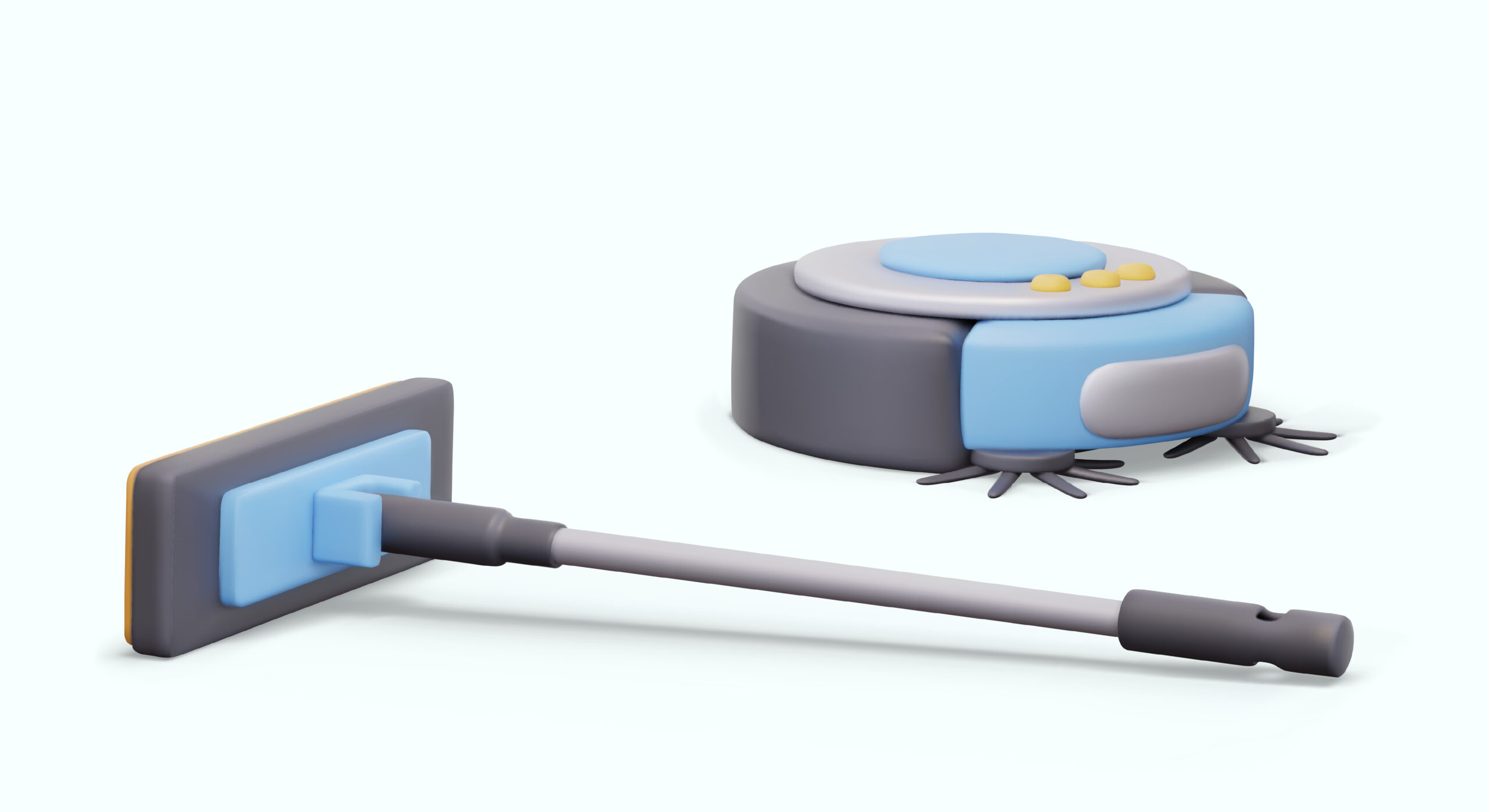
Robot vacuum cleaner technology has come a long way. The quality of the product, features of available, and price (when you consider what you get) have all improved. Now many of the robots include a wet mop features as well.

This technology came from the improvements in using robots in battlefield conditions to find/trip mines. Eventually someone thought about using similar technology commercially for home cleaning and the race was on. iRobot was one of the first brands to hit the main stream market in the US, but many options now exist. As with many of the new technology improvements, you do need to consider your privacy. The devices typically save a “map” of your home. Some of us may find a foreign country entity knowing our home layout to be just a little too much. For most of us, this is not a concern. Typical cleaner robots do not include cameras.

Most of us are always looking for a way to keep your home cleaner for less of your time. Robot vacuums and mops fit that need. The technology for mapping has approved to the point where not falling down steps, actually clean the entire floor area, etc…… The cleaning technology has improved to the point that not just hardwood or tile floors can be effectively cleaned. Adjusting settings automatically, to move from bare floor to thick carpet, are now standard features.

Here is an article covering some major models currently available, including their pros and cons. Link: https://buyersguide.org/robot-vacuum-reviews/t/mapping?l=504&gclid=&sli=1

The major questions you will need to ask are:

  • Budget
  • Just vacuum or do you want wet mopping as well
  • Self-Emptying or not
  • Amount of suction needed (floor type dependent)
  • Type of brushes needed (floor type dependent)

I have used multiple brands over the years, but personally I like the Roborock models. They have everything from entry level models to the latest technology. I especially like the design of their vacuum container. It is easy to clean between users.

Give me a call, email, or use the contact me feature of this website if you require some help figuring this stuff out!

Passkey — What Are They and Why/How Are They Replacing Passwords

First — What is a passkey? This is a device specific authorization that uses the device authentication (i.e., pin, fingerprint, face scan, etc…) to allow access to a program/website. Think of it as a special authentication that is limited to a physical piece of hardware in your hands. There is no need for 2-factor authentication or passwords if the program/website is using a passkey.

Concern — How is that better, and what happens if that device is lost, stolen, or has a critical malfunction? Passkeys are better in 2 ways!

  • From the end user standpoint, a single passkey can safely access multiple different applications. This is very helpful for the human brain. The reason a password should not be used this way is because passwords are transmitted over the internet to the program/website. Passkeys are not. The only information transmitted is the approval status….not the actual passkey code!
  • If the device becomes unusable (lost, stolen, critical failure, etc…), how do I log in? First, remember that passkey technology normally is managed by a 3rd party using extensive encryption technology specially for retrieval when device changes/reformatting occurs. Assuming you are using something like Google Password Manager, iCloud Keychain, Microsoft Authenticator app, etc…, you can recreate a new passkey when your device is repaired or replaced that will have access to all the original content. Secondly, most websites/programs that use a passkey still have backup methods for access if passkeys are failing. Third, a passkey can be saved as a physical security key (special kind of USB stick). This makes the stick the authentication device so you can use it with any computer.

But what about when someone has access to my computer or laptop? First, if you are not physically present at your device, it should be locked. You should also have a timer set to automatically lock it after X minutes to ensure this happens just encase you forget to lock it when you step away. If a thief was going to get access, they would have to steal it when it was unlocked and use it before the timeout feature would protect your data. Assuming that they have access with it locked, the types of thieves that can break operating system security in a passcode are not the local kind. They are typically government backed actors, that most of us don’t need to consider.

What about if I need more than ONE passkey or profile? For example, my work has me use my personal laptop.

  • Typical passkey systems allow more than one to be created.
  • If you think you require more than one, talk to a geek! Just because you use multiple programs/website does NOT mean you require multiple passkeys. Your IT support (or me) can help you navigate this concern.

Some USB stick based security key options:

Home/Gate Locks — Smart or Not?

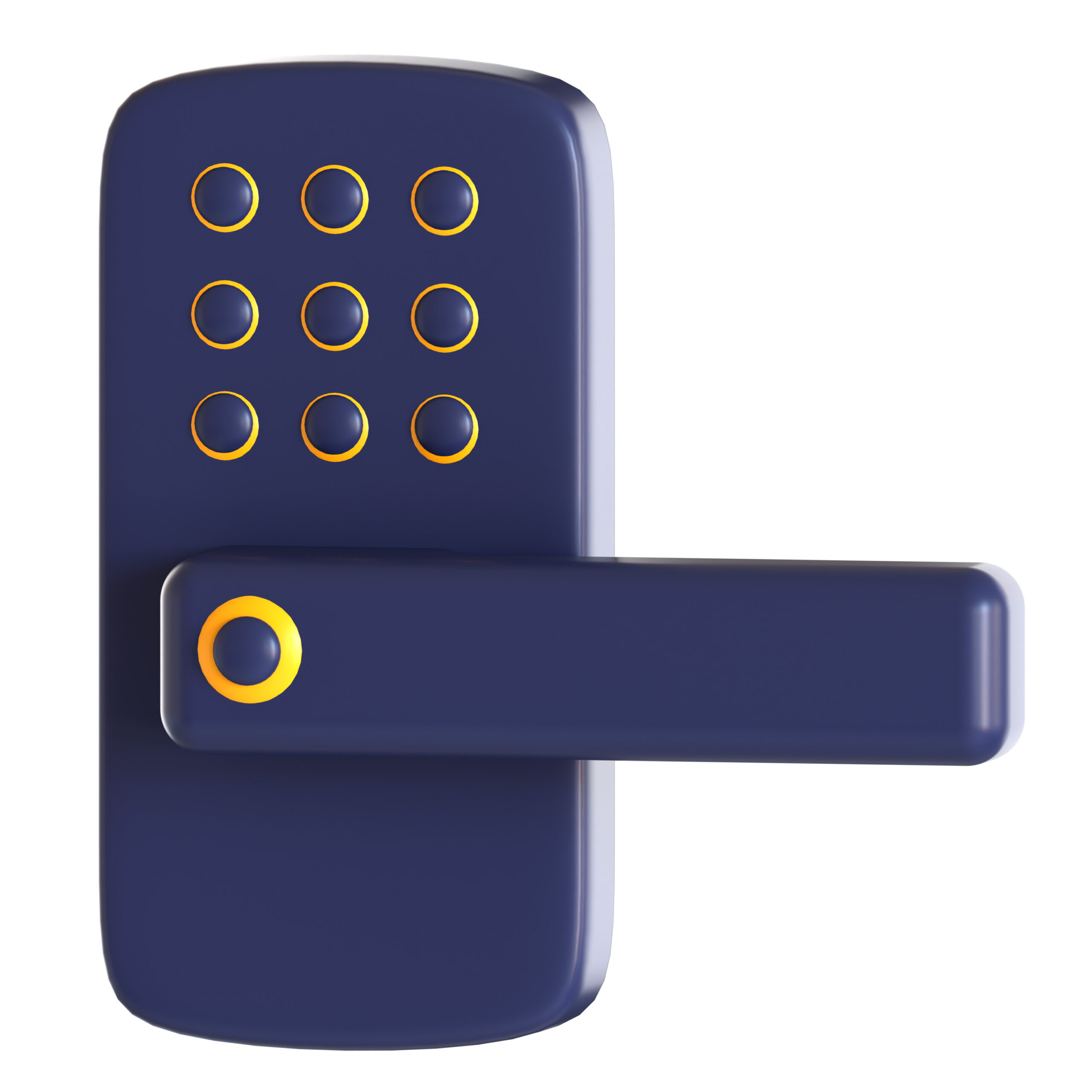
When consider installing or replacing existing locks on doors or gates, you should consider some features for smart or very not smart solutions that don’t require a key! Smart locks have one universal issue…power. Most of them have batteries that are very long-lasting, but at some point, you will probably be trying to enter your home, and it will not work because the battery is too low. At a minimum, you should not consider any smart lock that doesn’t have a key bypass override. Proactively replacing/charging batteries on a set cycle is also a best practice. Most smart locks include a phone app that allows you to set up more than one code, so you know who is coming and going. This is particularly good if you want to give a “worker” something temporary and not the easy to remember code you use for yourself.

Some options are:

Some Patio Door Options:

Some Gate Options:

Now, if you want to go “old school” but hate having to carry keys, you should consider a keyless mechanical lock. No battery issues here. No connectivity issues. Complete privacy.

Give me a call/text/email if you want some help finding the right solution.

Laptop Bags — What To Consider

If you have a laptop (including most tablets) you need to have a good bag/case to carry it. A bag needs to be strong/thick enough to protect your laptop. Looking good, being a convenient size/shape, etc…. doesn’t matter if your device is damaged while in the bag. The bottom of the section that holds your device can be reinforced with a piece of high-density form, which will help cushion your device every time you set down your bag. The straps and handles need to be strong enough to handle the weight. You do not want the strap to fail and cost you a laptop as well.

Consider using a “laptop sleeve”. This is a small case that you put on the laptop first, then put it in your bag. It gives your device just a little more protection AND a wonderful solution for when you suddenly must “check” a bag but still want your laptop. A sleeve is not enough protection on its own to prevent damage if you drop it, but short of that will give you protection for bumps and scrapes. Combined with a good bag, it can really save your laptop.

When picking a bag, make sure you get the correct size. You want your laptop to fit securely, but not so tight that you have to “fight” to get your device in the bag. For a typical 12–13″ laptop and using a sleeve, I would get a bag rated for 15″ laptops. Make sure you consider side USB ports. If you want to leave a mouse USB receiver plugged in, you will need another 0.25” of horizontal space to ensure your bag is not damaging the laptop over time by putting pressure on that port.

Laptop or Tablet Bag Options

Give me a call/text/email if you need some help getting the right bag for your device and needs.

Induction Ranges — Pros and Cons

The latest in cooking stoves or ranges is induction. It requires approximately 30% less energy than electric and 80% less energy than gas. It heats up faster than gas, but never creates a safety issue with out-gassing toxins or hot surfaces. Because the cook surface has no openings and is smooth (typically made of tempered glass), clean-up and maintenance are a breeze.

The most telling drawback is all your cookware will need to be replaced with induction cookware. Your pots and skillets will need to be compatible with the electromagnetic fields in order for heat to generate. This cost typically can be offset by the various government rebates and subsidies, even before considering the energy savings.

Some cooking options are:

Some cookware options are:

Give me a call if you have questions about induction cooking and would like to make this upgrade in your home!

Browsers — What Are They and Which One Should I Use?

Browsers are applications that are used to navigate the internet. Think of the internet as a highway system or network of roads. Various websites and domains are the destinations you reach when you use this road system. Browsers are the “vehicles” on the roads. Just like vehicles have different purposes and features……browsers do too. Some are better a privacy protection, some are faster, some handle graphics better, etc.….

The most common browsers are the default ones that come with your operating system. Apple users therefore tend to use Safari and Microsoft users tend to use Edge (formerly known as Internet Explorer). Because of Google’s relationship with Android, and it’s search engine, Chrome is very well known. Some lesser-known options are Firefox, Opera, Vivaldi, Netscape, AOL Explorer, SeaMonkey, etc….

Everybody should have at least 2 browsers on each of their devices. If one is damaged, you most likely will need to “use your car” to “go get a repair”. If you don’t have another browser to use, that can be really difficult.

For the average end user, FireFox is a good alternative because if one of the big three are not working, it is built differently and typically will work without issues. What browser you should be using really depends on end user usage and preferences, what software you are already using, and the hardware involved. There is no one right answer. Give me a call if you need some help making an informed decision.