Backups and Long Term File Storage

There are an extensive list of options when it comes to desktop/laptop backups and/or long term file storage. First, before we talk about the pros, cons, and differences, let’s consider a few things:

  • You need to understand your industry requirements. If you are talking about patient medical data, military/government data, or company proprietary information, etc…. The first consideration is what rules are you required to follow. As an example, HIPAA requirements prohibit using a distributed server, so many of the default cloud tools would not be allowed.
  • What are your needs? Just about everyone should have a backup but what type and how often? The most common type of backup is incremental and happens automatically in the background. This is a very effective method for capturing data but does NOT capture application or program settings in most cases. Another form of backup is a disk image. This captures EVERYTHING, but it cannot be done automatically, and you cannot be making changes/using the disk as it is being imaged. Great solution for loaded multiple devices with exactly the same image on exactly the same hardware, so everyone has the same tools, but not useful for real time backups.
  • Media — When you are talking about file storage, what material or device you storage the data will be directly related to how long it will be viable for retrieval. You need to know how long you want to keep the data so you can pick a media/device that will exceed your requirements. You also need to understand the requirements of that media/device. For example, I know many users who stored their old tax returns on CDs. This seems like a very good idea. CDs are durable, can hold a lot of data, and relatively inexpensive. The problem is most people used labels with an adhesive that corrupted the storage data over time….or used something like a Sharpie as a labeling method. Unfortunately, just like the label adhesive, ink that is not specifically formulated for CDs will slowly over time destroy the stored data.
  • Have your backup plan/file storage design reviewed by an IT professional. There are too many nuances that can completely invalidate what you are trying to achieve with your backup or file storage system. Most IT professionals are exposed to many unique client situations and can help you prevent making the same mistakes that quite often results in SOS calls. Due to our IT industry exposure/networking, we know the latest technology options, changes in various industry regulations, and “horror” stories of data failures.
  • Unique geographic risk factors. For example, in California, we deal with wildfires. I personally have had multiple clients think that backing up to a local external drive at their business location was a good backup option. Only to realize they lost everything when a fire evacuation was ordered, and they had no ability to safeguard the original computer/laptop or backup device before it was destroyed by fire. A simple 3rd party cloud backup solution would have prevented loosing everything when they were unable to return to their home/business to remove the equipment from danger.

File storage and backup options seem very straight forward and simple, but these decisions when not implemented carefully can have catastrophic consequences.
Setting Up Your Folder/File Structure for The New Year

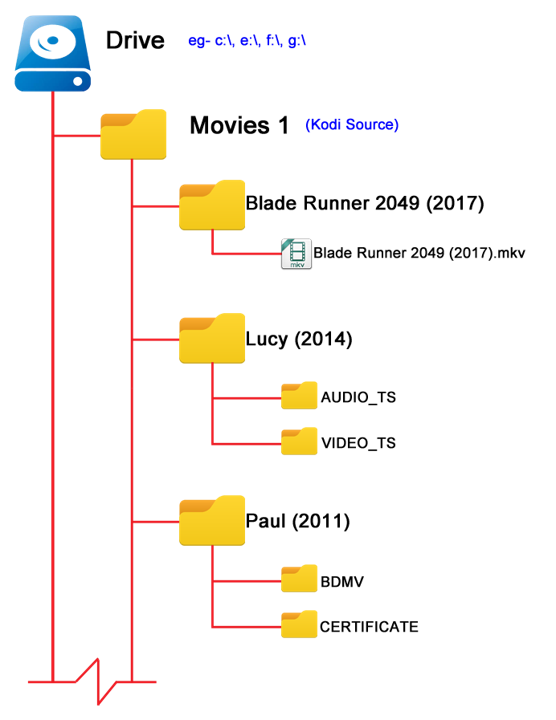
When you create your folder/file structure, PLEASE make them in a naturally archiving structure! What does that mean? For example, most people have a folder called clients and inside that folder they have a folder for each client. Here is the problem. Every time they want to clean out older data, they have to open each folder and remove the older content. Instead, set the structure up like this:

Each Year — Clients — Folder for each client……

Now what will happen is that each year as we approach January, you will create a new year folder and client folders as you need them. The power of this system is 7+ years out when you decide to prepare for the next year, you just grab the oldest year and hit “delete”. So for example I am setting up my 2026 Client folders. I create my 2026 folder, then create folders for my most common/reoccuring clients. As I create my client folders there is some “timeless” data I will copy over (i.e. their logos for example) for each client. This means when I want to delete the oldest folders, I don’t have to worry about loosing data I need for current work. I don’t have to spend hours going through old folders trying to thin out old content.

From a risk management point of view you DO NOT want to keep data you do not need. If you are ever compromised and have client data, you face legal/financial complications related to identity theft for each client involved. If you have lots of data/files and therefore cannot find when you need quickly that completely defeats the purpose of keeping the data.

Give me a call/text/email if you would like some help designing a structure that is easy to maintain, doesn’t have file names too “long” for the backup systems to automatically capture, and drastically reduce your risk if security is compromised.

Upgrade your Outdoor Lighting using Smart Technology!

Are you thinking about adding some outdoor lights to your home? Have you considered if they are going to be controlled by a good old fashion switch or maybe a timer? What about using smart technology? The first question is — Why? What is the advantage to using smart lighting features instead of just a simple on/off switch.

  • Energy Costs — only having the lights on when you need it saves money!
  • Safety — something as simple as having multiple lights come on when a motion sensor activates can make all the difference in preventing theft and other property damage.
  • Convenience — almost everyone has at some point run around the house, flipping various switches to turn lights off. If you had them tied to smart controls, the “switch” could be in your phone (which is typically on you) and can perform more than just on/off.
  • Integration — The real power comes from integrating the lights to other systems. The most obvious one is your outdoor cameras. The motion sensor at the front of the house trips; now the cameras start, the lights at the front and either side of the house come on, etc…. If I am a thief, a lot of attention has just been put on my activities, and I’m leaving.

So what are my smart lighting options. First consideration is what do you currently have installed. For example, if you have a Ring or Blink doorbell those systems including outdoor light control and are already integrated together.

Other options with various pros and cons:

The New York Times wrote a pretty good article about some of the various options available! Link: https://www.nytimes.com/wirecutter/reviews/best-smart-outdoor-lighting-for-backyards-pathways-and-more/

Give me a call, and we can figure out what is the best solution for your needs. For some, it will be buying component pieces that can integrate together…especially if you already have some smart technology installed. For others, depending on your budget and what you are trying to accomplish, going with a specific brand of products that are already designed to work together is probably the right solution!

What is Encryption?

When it comes to computers and the average end user, encryption typically involves two completely different usages. Let’s start with what is encryption? Encryption is the process of converting ordinary programming coding or data to a “secret” code that you need the encryption key in order to decipher the content.

So the two forms that most end users deal with is sending/receiving data and hard drive security. Let’s start with the sending and receiving of data. The most common forms are email encryption and virtual privacy network (VPN) tunnels. Email encryption is an “add on” provided by your email service that scrambles the data of an email so it cannot be read or opened unless the receiver has the key. The key is tied to unique user identifiers to prevent just a random person from opening/reading the email. A VPN is used to create a virtual “wall” of encryption around your data as it travels through the internet. If you think of the internet as a highway system with various exit ramps for different website addresses, then a VPN is a tunnel around your lane in the highway that prevents anyone from looking in your windows and prevents you from exiting off at the wrong ramp. VPNs are typically used by business to employee connections, financial transactions, or people who simply don’t want anyone to know where they are from and where they are going!

Hard drive encryption (sometimes referred to as endpoint encryption) is where the entire hard drive of a computer needs a key by each program in order for it to access data or perform functions on the hard drive. This is VERY useful if someone is wanting more security than just a password. Think of it as having additional security behind the lock on the front door. The concern with hard drive encryption is it prevents some forms of IT support when you are having technical issues with your hard drive or software. It is REALLY important to ensure you have the hard drive backed up to a 3rd party location because quite often the only fix available with an encrypted hard drive is to “flatten and reload”. It is quite frequently what various malware/hackers do to hold your data hostage. They will “encrypt” the hard drive and then only give you the key if you pay a ransom (and sometimes not even then). Really essential that you don’t give permission to any application to encrypt your computer unless you really want it encrypted and have access to the associated key.

Using encryption on your computer is a great way to enhance the security already being provided by your firewall and antivirus services….especially for the transmission of data. Just keep in mind the trade-offs for maintenance and repair, or even the forwarding of an email to someone else.

Website Design — What Every Small Business Owner Should Know!

Are you a small business owner or person trying to do their own website….or hire someone but don’t really understand what they are asking you and/or what is involved? Let me walk you through the basics and what you should know as you set up, update, or maintain your website.

First, some basic knowledge. Your website most likely is set up with two main components.

  • The domain — this is the URL and you own it/lease it. Nobody else can have exactly the same address as you. In fact, it is really a good idea to grab more than just the one you want to use (Ex: yourdomain.com, yourdomain.net, etc…). You should grab very similar ones OR ones you don’t want people to use (Ex: yourdomainisstupid.com).
  • Web hosting and design services — this is your website design and the service responsible for having it loaded on a static internet connection (i.e., not a machine at your home connected to the internet via typical Dynamic Host Configuration Protocol — DCHP — residential service).

I HIGHLY recommend you have your domain and web hosting/design services from the same provider. It will help make sure you don’t have one expire and not realize it. If you own more than one domain, you only need to have your website hosted on the preferred address. You can then have all the other similar addresses automatically forwarded to your website, so if someone types in the wrong stuff (i.e., does .net instead of .com….they still end up at the correct place)!

Now you need to ask yourself some questions so you understand what your website is supposed to do, how it will support/grow your business, what features are nice vs. must haves, etc…

  • The MOST IMPORTANT question to ask is how will people be accessing your website. When a website is designed, we build it for a particular environment (desktop/computer viewing or tablet/cell phone viewing). At the same time, most website design software will automatically make a similar or nearly the same format that is supposed to be optimized for the other format. The big differences are landscape for computers and portrait for phone. The other difference is processing power. A very complex video/graphic intense website is NOT going to show well on most cell phones….especially if they have limited bandwidth cellular connectivity. While you want it to function in both environments, it should be “designed” for the environment your clients/the typical person on the street will use when accessing your website. The ensures it looks and functions exactly how you want, and the “close” approximation is the environment not used as much! Almost all website designers simply build it for a computer, even though most of us have primary usage by cell phone.
  • Now the next question is purpose. Why do you have a website? What are you hoping to accomplish with your website? Is it to educate the average person on the street about your products/services, or is it for your clients to review additional information so you can hopefully add additional services/products they didn’t even think about before.
    • Now that you understand the purpose, you can start considering must have features!
      • Do you want a real-time calendar/scheduler on the website, so a client can “book” directly to your schedule?
      • Do you want a form to capture information from a client so you can respond with customized and directly applicable content during your very first conversation?
      • Does your industry have some security consideration beyond the standard IT stuff that you must consider (Ex: HIPAA for medical, VPN or secured communications for financial transactions/privacy requirements, etc….)
  • What content do you already have?
    • Do you videos you need to load?
    • Are you on social media, and they need to be linked up?
    • Do you already have some branding standards that you need to follow (font, colors, specific artwork/logos, etc…) so you do not diluent your brand identity.
  • Now you can start having that budget conversation. Your web designer should be able to give you a quote or at least a rough idea, depending on what you want and what they will have to create from scratch. Depending on the number, you may need to re-evaluate some of your content and wants to ensure what you need is achievable within your budget.

Give me a call/text/email if you have a website, and you have got questions or want to make changes! If you need a website, I can help you figure out what you want and how that is going to happen.

Lawn Irrigation or Maintenance — Do It Smartly!

In southern California, we really need to have lawn irrigation if you want to grow anything like grass. It can also help with fire safety, depending on how you have it configured. There are multiple ways this issue can be solved.

Option 1 — Hire somebody! This is probably the solution you are doing right now, but it is constantly leaving you tied to someone else’s schedule and pricing. By using various technology solutions, you can minimize your paid service to only do monthly or seasonal maintenance.

Option 2 — Replace with zero scape yard. For some, this is a mostly rock design, but many of the local plants are designed to work with the current climate conditions. This means you don’t need to water except for a few times a year during the worst of the dry season. These yards can be beautiful with very little maintenance!

Option 3 — Most people cannot or don’t want to redo the entire yard. Most of us need a more balanced update to our yards. This starts by reviewing what you like or dislike about your yard. Now you can start making changes that will achieve what is really not working for you! This might be removing the bushes that require frequent trimming, replace/remove a tree that is near end of life, and review the conditions of your plants to see what is working and what is not.

Now, once you have that data, you can review some technology solutions to see what is the best fit. This could be just a rain gauge to make sure you don’t water when water has fallen from the sky recently. You may want something more accurate and allows you to water in a zone specific manner! This would involve adding soil moister sensors so plants that need different water requirements can be watered specific to their needs, but not a gallon extra.

A major upgrade would be if you tied this to AI or other monitoring technology. Most of them can be accessed via your phone. Very important information for ensuring your yard really showcases your home!

Give me a call if you require some help trying to figure out what type of update best fits your needs!

And don’t forget, if you have a small yard and like to do it yourself, a “robot” lawn mower may be the solution for you!

Using Smart Home Technology — Smartly!

When it comes to smart home technology, there are an endless amount of possibilities if you have an unlimited budget. The first decision you need to make is what are your priorities and how much they weigh against each other. Some want their home to automate various household duties so they get more time for other tasks in our life. Many of us look at smart home technology as a way to increase the value of our home investment. Some look for security enhancements, especially as the world becomes more crazy. Other considerations are the “wow” factor. The ability to say, I have this and it is great! Most of us have multiple priorities, but they are not all of equal value.

Make a list of your wants. I want to automate some maintenance tasks. I want help with the efficiency of tasks like laundry, cooking, etc… Your concern may be energy consumption without having to negatively impact your day-to-day life. Once you have that list, break each item down into how that happens. Do you want to upgrade your lawn watering from the garden hose sprinkler setup to a permanently installed irrigation system with soil water sensors and computer controls? Now you need to work with the right specialists to see how you are going to accomplish your wants and what will it costs. Another consideration is the complexity of the solution. If you are not technically inclined, you do not want a solution that requires constant human supervision/input to ensure optimal performance.

Now you need to look at the various solutions and see which is the priority. It may be that you really want to install solar panels with a whole house battery option, but considering you have a new roof and the cost of installation, it may not be as good of an investment as upgrading various household appliances. Both would give you productivity/efficiency improvements but with completely different household impacts and budgets.

This is where someone like myself who is familiar with a very wide range of technologies can be really helpful. I can help you make this decision with informed knowledge. Coordinate the solution with various installers to minimize the installation disruption to your life and household. Make sure you are left with the appropriate knowledge to use and maintain the new technology.

For example, you decide that you want to improve energy efficiency to minimize AC needs. So upon reviewing your current setup, we tackle this problem with multiple solutions. First we review your AC equipment to see if it should be upgrade or replaced. Let’s assume that your unit is not new but fully functional and not horrible on energy usage. Next we look at your home. Maybe we think about windows. Something simple like upgrading to double pane windows with blinds built inside between the glass panes could be a major enhancement. We might also consider your home insulation. Insulating everything probably doesn’t make sense but enhancing the attic insulation and maybe just doing the west/south facing exterior walls could give us significant enhancements to your ability to control the interior temperatures without needing extensive AC usage. Let’s say when you recently did that roof upgrade you installed some skylights that have the ability to open and close using a manual hand crank. Now we have an opportunity to really think about smart technologies. Using a local contractor we could install a motor to open and close the skylights via the manual hand cracks. The motor could be installed on a “smart switch”. Now that switch can be controlled wirelessly via an app on your phone. Lets assuming you install a whole house fan that you also can control via a smart switch. You would probably set up another switch/controller on your AC system. Now you can use your phone to turn on/off the AC, open/close the skylights, turn on/off the whole house fan, etc…. Depending on the app involved, you could have all of that tied directly to some temperature settings. So if temperature is above X use AC and close everything up. If it is between X and Y; turn off AC, open skylights, and turn on whole house fan (assuming the rain sensor says it is dry). If it is below X, close everything up and turn heater on.

Someone like myself can help you see the effective solutions for today and the long term plan so as equipment is replaced over time you have technology that can work together. There are even AI systems that can monitor, control, and optimize these technologies assuming you make informed decisions about compatibility.

Mobile Monitors/Screens

Do you work from your laptop but need more “screen” to work effectively? Require a solution other than packing up a full size monitor? Technology has come a long way, so let us walk through some options!

Use a locally available TV screen. You should always carry/bring with you an HDMI cable, especially if you do a lot of hotel travel. You may even want to bring a “long” HDMI cable so you can stretch out on the bed while your laptop is connected to the TV on the wall.

Travel laptop monitor are now viable and really allow you to make the “office on the go” not a major productivity hit!

For those looking for a “large screen” solution, a projection screen is the way to go. Most of these can be used with a typical “white” wall but would have much better quality if you bring a screen as well. Keep in mind that these solutions normally do not work well in direct/bright light conditions.

Some upcoming technology will be bendable/rollable screens. They are not widely available yet, but as the technology matures, the price will drop and availability will increase. Give me a call/text/email if you would like some help figuring out the best solution for you!

Online Meetings — Webcam and Headphones

Most of us are now using the computer, tablet, or cell phone for live meetings or recording video content. One of the primary tools for getting this done is a webcam.

Webcams are typically built into any laptop and all-in-one computer setups. If you have a stand-alone monitor, typically you will purchase a USB connected webcam to set on top. Nothing prevents a laptop user from using a USB webcam, and you may find the picture quality greatly improved because your monitor angle does not directly impact your camera and external equipment is typically higher quality.

I highly recommend those using a stand-alone monitor or a laptop purchase a USB webcam to set on top, even if you have a camera in your laptop. For effective meeting experience, you need to be looking directly at your monitor screen and have the camera position be ABOVE your eye level. If you have a laptop sitting on a desk or your lap, and you look down at it, it will add weight to your features and give many viewers an EXCELLENT viewing angle of your nose hairs! Some options are:

All of these models have face recognition technology. Do NOT purchase a webcam that doesn’t automatically focus. You do not want to be adjusting the camera focus point every time you move during a one hour or longer meeting.

Most webcams have a microphone, which is good if you are in a quiet room with soft surfaces to absorb background noise or echoes. Some even of noise-canceling features. Since most of us cannot guarantee a quiet space for all meetings, I highly recommend investing in some cordless headphones. Even an inexpensive Bluetooth stereo headphones with microphone will normally give you a much better audio than if you just use the built-in microphone or the one in the webcam. This is a necessity if you are using your phone or tablet for the meeting or in a noise space. Some options are:

Almost all meeting technology (WebEx, Zoom, Microsoft Teams, FaceTime, etc…) has customizable settings for the webcam and audio. Please take the time to review these features and ensure you have them set to maximize your meeting experience. Depending on your setup, you may find investing in a “light” will improve your video image quality but don’t forget to check your meeting settings. A lot of issues can be resolved, just be adjusting the video and audio settings.

If you need some help recommend the best setup for you and running a few dry runs to make sure it is all working correctly, just reach out!

Hotspot Connectivity

Are you trying to work while on the move? Doing a little travel and need some connectivity? A hotspot probably is the solution, but there are multiple ways to accomplish setting up a hotspot and each of them have different pros/cons.

Most of us are in locations with cellular coverage and therefore a cellular connection is available to use for your laptop/computer if you have a cellular device with hotspot functionality. Almost any smartphone has this feature and if you are on an unlimited plan, there will be NO EXTRA CHARGE for using it! If you are in a location with cellular coverage but maybe not viable for your current cell phone (i.e., foreign travel) or don’t have a smartphone, then a stand-alone hotspot device is the best solution.

Cellhire (https://www.cellhire.com/) is a great solution for renting a cell phone, stand alone hot spot, satellite phone, etc. that are delivered directly to you….use it and at the end of your trip you send it back. Depending on what you sign up for, it can even coordinate with your original cellular number so “folks back home” don’t see a foreign number calling, and you receive all the calls directly from your USA device. Much safer than grabbing a SIM in a foreign country. Typically, the most “cost-effective solution” is to only rent a hot spot stand-alone device. Now, at the time of travel, turn the “cellular” connection on your personal cell phone off and make sure the Wi-Fi enabled calling is on. That way you can connect your personal phone to the hot spot and have full service but no foreign roaming/usage charges. Make sure you have it set correctly so you are not surprised with a large cell phone bill on your return.

Domestic travel where cellular connectivity is limited but exists. This is where a cell booster is a solution. I am using one right now to maintain connectivity as I write this article from the beach on a camping trip. Multiple hardware solutions are available, and you do have to call your cell phone provider so they can authorize the specific device to work on their network. This cost NOTHING other than the initial hardware purchase. Some hardware options are:

Now these solutions are “mobile” and while they talk about using them in a vehicle or RV, the reality is they are good for anyone with multiple locations where cell coverage is low. There are other solutions for fixing cell phone coverage at a stationary location like your home. The easiest is to enable “Wi-Fi” calling on your cell phone. It will automatically use a recognized Wi-Fi connection when they are available and seamlessly switch to cell phone connection without you doing anything. Great solution for the home office. Wi-Fi covers you in the house. You start the conversation as you walk out to your garage and without dropping the call it switches to the cellular connect which is good “at the street and bad in your home” as you pull out into traffic. The other option is a cell phone boost that is not designed to move/switch cell towers. Very effective solution for a work/home location with weak cellular coverage. Some hardware options are:

Connectivity while mobile is possible using publicly available Wi-Fi like in a coffee house, hotel lobby, or McDonald’s but quality of connection and security vary greatly.

Give me a call if you need some help figuring out the best solution for your needs.