What to know about buying a new laptop/desktop?

Are you thinking of getting a new laptop/desktop? Right now we are experiencing a MAJOR disruption to our supply of RAM chips (i.e. the stuff in a desktop/laptop that gives the processor instant storage space to perform a task….and specifically to perform multiple tasks at the same time). RAM chips are probably the most impactful piece of hardware for a computer when the end user is talking about “speed” besides the processor (i.e. brain).

A basic best practice for a laptop is to always max out the amount of RAM the motherboard can handle. RAM chips in a laptop are very customized so they will fit in that space and therefore can be expensive later in the device life when you want to upgrade because product runs have ended. Desktops use a more universal configuration and are accessible for replacement/upgrade without needing special tools therefore upgrading them during the device lifecycle is typically not a bad idea.

So what is the impact right now? Independent and small batch custom builders either cannot get RAM chips or are paying 200 – 400% increases from what we consider normal prices. Many of the newer laptops and desktops for sale are not even available with significant RAM specifications. The expectation is that RAM chip supply will meet demand, driving prices back to a more reasonable number end of 2026 or sometime 2027. If you can wait, it is recommended. If you can’t, you may just want to get a machine that you plan on only using for a couple of years and therefore don’t need to max out the RAM and can get your “real” machine after supplies recover.

Windows OS recommends 16GB RAM minimum and since you will be using more than just the Window OS, 32GB RAM is probably a smart minimum depending on what you are doing. Apple has different requirements, but they too are impacted by the supply shortage. Gamers and high-end users would typically be looking at 128GB of DDR5 model but with prices where they currently range, most are making do with 64GB or sticking with older RAM types like DDR4. Graphic card supply is impacted as well, although not as bad, therefore this issue is causing problems on that front as well.

Here are some laptop options currently available. They range in price from about $800 – $5,500. This gives you and idea of how the large RAM chip size is significantly impacting price. Keep in mind that the higher end machines also have more features so other factors are involved in the price too.

Desktops have even greater customizable features, so you really need to know your specific use case to determine what is even a good fit. Give me a call if you want some help figuring out the “right” machine for your specific use case!

Backups and Long Term File Storage

There are an extensive list of options when it comes to desktop/laptop backups and/or long term file storage. First, before we talk about the pros, cons, and differences, let’s consider a few things:

  • You need to understand your industry requirements. If you are talking about patient medical data, military/government data, or company proprietary information, etc…. The first consideration is what rules are you required to follow. As an example, HIPAA requirements prohibit using a distributed server, so many of the default cloud tools would not be allowed.
  • What are your needs? Just about everyone should have a backup but what type and how often? The most common type of backup is incremental and happens automatically in the background. This is a very effective method for capturing data but does NOT capture application or program settings in most cases. Another form of backup is a disk image. This captures EVERYTHING, but it cannot be done automatically, and you cannot be making changes/using the disk as it is being imaged. Great solution for loaded multiple devices with exactly the same image on exactly the same hardware, so everyone has the same tools, but not useful for real time backups.
  • Media — When you are talking about file storage, what material or device you storage the data will be directly related to how long it will be viable for retrieval. You need to know how long you want to keep the data so you can pick a media/device that will exceed your requirements. You also need to understand the requirements of that media/device. For example, I know many users who stored their old tax returns on CDs. This seems like a very good idea. CDs are durable, can hold a lot of data, and relatively inexpensive. The problem is most people used labels with an adhesive that corrupted the storage data over time….or used something like a Sharpie as a labeling method. Unfortunately, just like the label adhesive, ink that is not specifically formulated for CDs will slowly over time destroy the stored data.
  • Have your backup plan/file storage design reviewed by an IT professional. There are too many nuances that can completely invalidate what you are trying to achieve with your backup or file storage system. Most IT professionals are exposed to many unique client situations and can help you prevent making the same mistakes that quite often results in SOS calls. Due to our IT industry exposure/networking, we know the latest technology options, changes in various industry regulations, and “horror” stories of data failures.
  • Unique geographic risk factors. For example, in California, we deal with wildfires. I personally have had multiple clients think that backing up to a local external drive at their business location was a good backup option. Only to realize they lost everything when a fire evacuation was ordered, and they had no ability to safeguard the original computer/laptop or backup device before it was destroyed by fire. A simple 3rd party cloud backup solution would have prevented loosing everything when they were unable to return to their home/business to remove the equipment from danger.

File storage and backup options seem very straight forward and simple, but these decisions when not implemented carefully can have catastrophic consequences.

Setting Up Your Folder/File Structure for The New Year

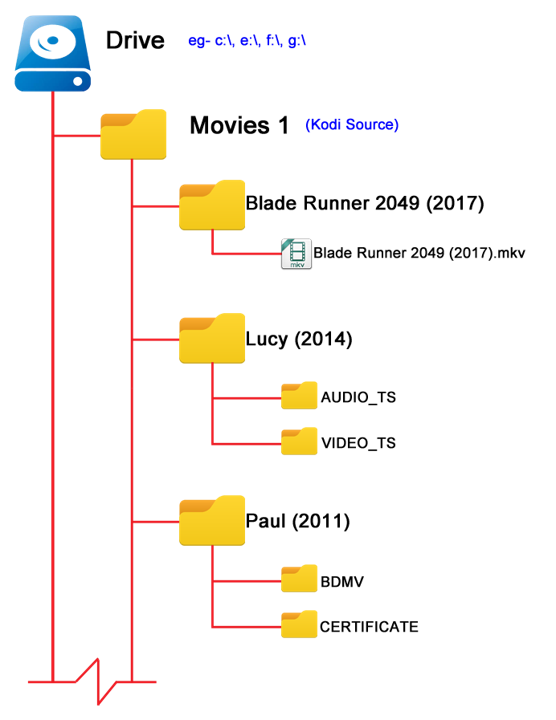
When you create your folder/file structure, PLEASE make them in a naturally archiving structure! What does that mean? For example, most people have a folder called clients and inside that folder they have a folder for each client. Here is the problem. Every time they want to clean out older data, they have to open each folder and remove the older content. Instead, set the structure up like this:

Each Year — Clients — Folder for each client……

Now what will happen is that each year as we approach January, you will create a new year folder and client folders as you need them. The power of this system is 7+ years out when you decide to prepare for the next year, you just grab the oldest year and hit “delete”. So for example I am setting up my 2026 Client folders. I create my 2026 folder, then create folders for my most common/reoccuring clients. As I create my client folders there is some “timeless” data I will copy over (i.e. their logos for example) for each client. This means when I want to delete the oldest folders, I don’t have to worry about loosing data I need for current work. I don’t have to spend hours going through old folders trying to thin out old content.

From a risk management point of view you DO NOT want to keep data you do not need. If you are ever compromised and have client data, you face legal/financial complications related to identity theft for each client involved. If you have lots of data/files and therefore cannot find when you need quickly that completely defeats the purpose of keeping the data.

Give me a call/text/email if you would like some help designing a structure that is easy to maintain, doesn’t have file names too “long” for the backup systems to automatically capture, and drastically reduce your risk if security is compromised.

Shortcuts, Text Replacement, and Buttons

Computers are EXCELLENT at repetitive tasks. Depending on the complexity of the task and how often you perform, it might be easier and faster to automate the task or set it up with a button to activate.

Keyboard or Mouse Programmable Buttons

These are easiest to use and setup. Some keyboards or mice come with additional physical buttons and software to control them. The most obvious automation is adding an action to a button. For example(s), open website ABC when clicking program button 1…open blank/new email when clicking program button 2…open/start programs or installed application XYZ when clicking program button 3, etc…..

Some hardware options with programmable buttons are:

Some programs/applications on computer or smartphones allow you to set up a customize command to perform a series of tasks in a specific order. Excel is extremely effective at this. For tasks you frequently execute, it can save HOURS of time.

The most universal automation is text replacement. This is done by the operating system of a computer or smartphone. Both Apple and non-Apple hardware have these features. Give me a call if you need some help setting them up.

Example: If you have a typical statement(s) you make all the time that is long to type. You can set it up so you type something like 5 specific letters, and it replaces it. Very useful for something like: “We meet on XYZ date at ##:## AM. Here is the Zoom link, http://abc.xyz.com!” You type 5 letters and the entire sentence appears, including the URL.

Passkey — What Are They and Why/How Are They Replacing Passwords

First — What is a passkey? This is a device specific authorization that uses the device authentication (i.e., pin, fingerprint, face scan, etc…) to allow access to a program/website. Think of it as a special authentication that is limited to a physical piece of hardware in your hands. There is no need for 2-factor authentication or passwords if the program/website is using a passkey.

Concern — How is that better, and what happens if that device is lost, stolen, or has a critical malfunction? Passkeys are better in 2 ways!

  • From the end user standpoint, a single passkey can safely access multiple different applications. This is very helpful for the human brain. The reason a password should not be used this way is because passwords are transmitted over the internet to the program/website. Passkeys are not. The only information transmitted is the approval status….not the actual passkey code!
  • If the device becomes unusable (lost, stolen, critical failure, etc…), how do I log in? First, remember that passkey technology normally is managed by a 3rd party using extensive encryption technology specially for retrieval when device changes/reformatting occurs. Assuming you are using something like Google Password Manager, iCloud Keychain, Microsoft Authenticator app, etc…, you can recreate a new passkey when your device is repaired or replaced that will have access to all the original content. Secondly, most websites/programs that use a passkey still have backup methods for access if passkeys are failing. Third, a passkey can be saved as a physical security key (special kind of USB stick). This makes the stick the authentication device so you can use it with any computer.

But what about when someone has access to my computer or laptop? First, if you are not physically present at your device, it should be locked. You should also have a timer set to automatically lock it after X minutes to ensure this happens just encase you forget to lock it when you step away. If a thief was going to get access, they would have to steal it when it was unlocked and use it before the timeout feature would protect your data. Assuming that they have access with it locked, the types of thieves that can break operating system security in a passcode are not the local kind. They are typically government backed actors, that most of us don’t need to consider.

What about if I need more than ONE passkey or profile? For example, my work has me use my personal laptop.

  • Typical passkey systems allow more than one to be created.
  • If you think you require more than one, talk to a geek! Just because you use multiple programs/website does NOT mean you require multiple passkeys. Your IT support (or me) can help you navigate this concern.

Some USB stick based security key options:

Browsers — What Are They and Which One Should I Use?

Browsers are applications that are used to navigate the internet. Think of the internet as a highway system or network of roads. Various websites and domains are the destinations you reach when you use this road system. Browsers are the “vehicles” on the roads. Just like vehicles have different purposes and features……browsers do too. Some are better a privacy protection, some are faster, some handle graphics better, etc.….

The most common browsers are the default ones that come with your operating system. Apple users therefore tend to use Safari and Microsoft users tend to use Edge (formerly known as Internet Explorer). Because of Google’s relationship with Android, and it’s search engine, Chrome is very well known. Some lesser-known options are Firefox, Opera, Vivaldi, Netscape, AOL Explorer, SeaMonkey, etc….

Everybody should have at least 2 browsers on each of their devices. If one is damaged, you most likely will need to “use your car” to “go get a repair”. If you don’t have another browser to use, that can be really difficult.

For the average end user, FireFox is a good alternative because if one of the big three are not working, it is built differently and typically will work without issues. What browser you should be using really depends on end user usage and preferences, what software you are already using, and the hardware involved. There is no one right answer. Give me a call if you need some help making an informed decision.

Monitors — Features to Consider

Your monitor will have a huge impact on how much you enjoy/tolerate using a computer. You do NOT need to be a “gamer” or “high-end user” to benefit from a good monitor.

If you are experiencing any issues with your eyesight, including those related to aging; you need to consider a large monitor. If when you use a computer, you typically involve multiple screens, a large monitor will significantly improve your productivity. If you are sitting at a desk or table and using your laptop screen, you need to invest in a monitor. I have had multiple clients that really didn’t think they wanted/needed a large screen and after purchasing one (typically during a laptop/computer refresh) it was more impactful than the increased computing performance.

Some large monitor options:

You can use a standard TV as a monitor but remember while it is large it does not have the resolution that even an inexpensive computer monitor will have.

Using multiple screens can be a huge advantage and are frequently used by “geeks”. If you are uncomfortable with computers or technology, you will find a single large screen to be much easier to navigate.

Give me a call if you would like some help finding the “right” solution for you.

Home or Office Air Filters

Anyone tired of “dusting” your office space…. Or sneezing every time you try to work on your computer? The cooling fans for CPUs result in ionization. The result is not only are they sucking in air, but they then ionize the dust particles, so they stick together and become heavy when exiting the computer. This results in dust accumulating around your computer equipment. Not only can it be a health hazard but over time it will degrade the cooling functionality of your computing equipment and if in dusty/pet hair heavy environments can result in damage or decrease life for the computing equipment.

Solutions

At a minimum, your home/office area should have regular cleanings of the HVAC filters and potentially have a whole house/office filter installed. In addition to that, you should consider adding additional local filter units in heavy computer areas or if you have allergy or pet hair issues. Talk with your local HVAC contactor for a whole house air filter solution. Here are some various room/area specific solutions that vary greatly in price and features. Remember, HEPA filters typically remove dust size particles and larger from the area. They will need to be changed regularly to be effective. If you have vaulted ceilings, you will need to double the SQ footage of cleaning power to cover the same size rooms, since it will have a significantly larger quantity of air to clean.

  • Gold standard (and expensive) solution: IQAir — https://a.co/d/agTV3zU. This model is about 3 feet tall and takes up about 1.5 × 1.5 feet SQ. The filter life is measured in months, even if you use it 24 hours a day. It has 3 filters — pre-filter, carbon odor filter, and high-quality HEPA filter. The filtration is small enough to even remove some airborne viruses/bacteria. Because of the different fan speeds, you can ramp up/down the performance based on your needs, including a very quiet mode at night when you are trying to sleep.
  • Solid room filter: GermGuardian — https://a.co/d/hVQ0cc4. Solid HEPA filter that is significantly smaller/cheaper than IQAir but handles a much smaller area and the filter must be replaced more often.
  • Room/air filter: Winix — https://a.co/d/d7WRwA7. Winix has been around for a long time, and therefore you are likely to find replacement filters even years later.
  • Desktop filter: AirTok — https://a.co/d/3y9bsAf. Excellent model to place right next to your computing equipment. This will greatly minimize the amount of dust resulting from the computer equipment ionized air. It has the ability to add “scents” to a pad, thereby resulting in a little aroma therapy.

I have asthma, allergies, and pets. My home has an IQAir in the main living space and 3 additional filters in my office space. This is more filtration than most users need, but I am finally not getting headaches by the end of the week due to dust and pet dander in the office. I still clean frequently but no longer feel like my skin is on fire and itchy when sitting near my computer. I also find that the amount of cleaning to keep my computer air intakes clean has just about disappeared!

Company Training — Is Yours Up-To-Date?

Typically, most small business owners have very little accurate/up-to-date company training documentation. Even more importantly with millennials, the training is typically a list of steps and not screenshots or short video formatted. Unfortunately, this becomes apparent when attempting to onboard a new team member. It is not unusual to see new employees updating training as they are attempting to onboard and function in their new job/role. This sets everyone up for failure.

Even as an employee, if the company doesn’t have up-to-date or complete training documentation on your job/role/responsibilities, do it yourself. This information is invaluable when preparing for your performance review, updating your resume, or requesting help/additional staff.

Historically, training is a list of steps that may or may not include how to information. Today, younger employees find this lacking. They are expecting screenshots or short video detailing/showing the steps outlined in the training. Before using various smart or recording tools, make sure you are not violating any company policies. Quite often 3rd party tools will keep a copy of the data/screenshots involved in any training you create using their services. This could be a violation of your company’s policies and result in company or client data loss.

Some Currently Available Smart Tools:

Obviously good training content can be created using typical resources like Microsoft Office, Apple Office programs, etc… but remember it should be more involved than a list of steps. The content must be up-to-date, accurate, at a minimum include screenshots, probably include short video examples, and include url/program specific information. Don’t make the user have to look up content elsewhere just to complete a step or understand an instruction.

Give me a call if you need some help updating your company training content. Don’t forget to regularly have employees review their current job/roles/duties in relation to training and documentation content to ensure it is current and reflective of their duties. Waiting until someone turns in a notice, retirement, or medical emergency is not a recipe for success.

Why/If You Should Update/Migrate to Windows 11!

So the first question is do you have IT support provided by your company. If so, they should already have a migration plan in place. If not, then the short answer is yes, but you do need to keep some considerations in mind.

  • Is my equipment ready? If you are getting a notice from Microsoft to upgrade, then your equipment should be ready. If not, this would be a good time to consider if you need to replace existing equipment because it will not support the upcoming Windows OS. Here is the Microsoft list of minimum requirements (Link: https://www.microsoft.com/en-us/windows/windows-11-specifications). Obviously, almost any IT person would tell you never run a Windows OS at just the minimum requirements if you want a smooth, stable working environment.
  • Limited timetable for existing Windows users to upgrade to Windows 11 at no charge. Currently, Windows 10 is schedule for “end-of-life” by Microsoft for October 14, 2025. While Microsoft has not given a specific date for the free upgrade ending, they have stated repeatedly that it is a limited time offer. It would not be surprising for the free upgrade to end sometime around or after Windows 10 is sunset.
  • New software written for the latest Operating System (OS). Any new software you are installing/purchasing will be configured for optimal performance in the latest Windows OS. Many times it will work with an old OS but not as fast and stable or specific features may be disabled.
  • Windows 11 includes significant security enhancements. Windows 11 includes many security enhancements, including boot isolation and enhanced application controls. Some of these enhancements require specific hardware components, which maybe why it is not practical to upgrade your existing equipment (Link: https://www.microsoft.com/en-us/windows/learning-center/windows-11-security-features). In my opinion, while these enhancements are great, they do not take the place of a 3rd party firewall and antivirus application….especially if your device has client personally identifiable information (PII).

Both Apple and Windows OS should be updated regularly. If you don’t have a company controlled computer asset, you should have automatic updates turned on. Even with them scheduled, you still should do a manual check because many of the major OS updates or the “optional” 3rd party drivers (i.e., monitor, keyboard, mouse, Bluetooth, etc…) do not automatically install. You should have a monthly reminder to check your updates to see if there is anything you want to install.

Give me a call/text/reach out via my website if you need some support to figure out your equipment and updating situation.